Create initial dashboard
This section explains how to set up a dashboard to view orders.
The main purpose is to familiarize users with Snowsight.
Once a user is logged in, the default Snowsight environment is shown:
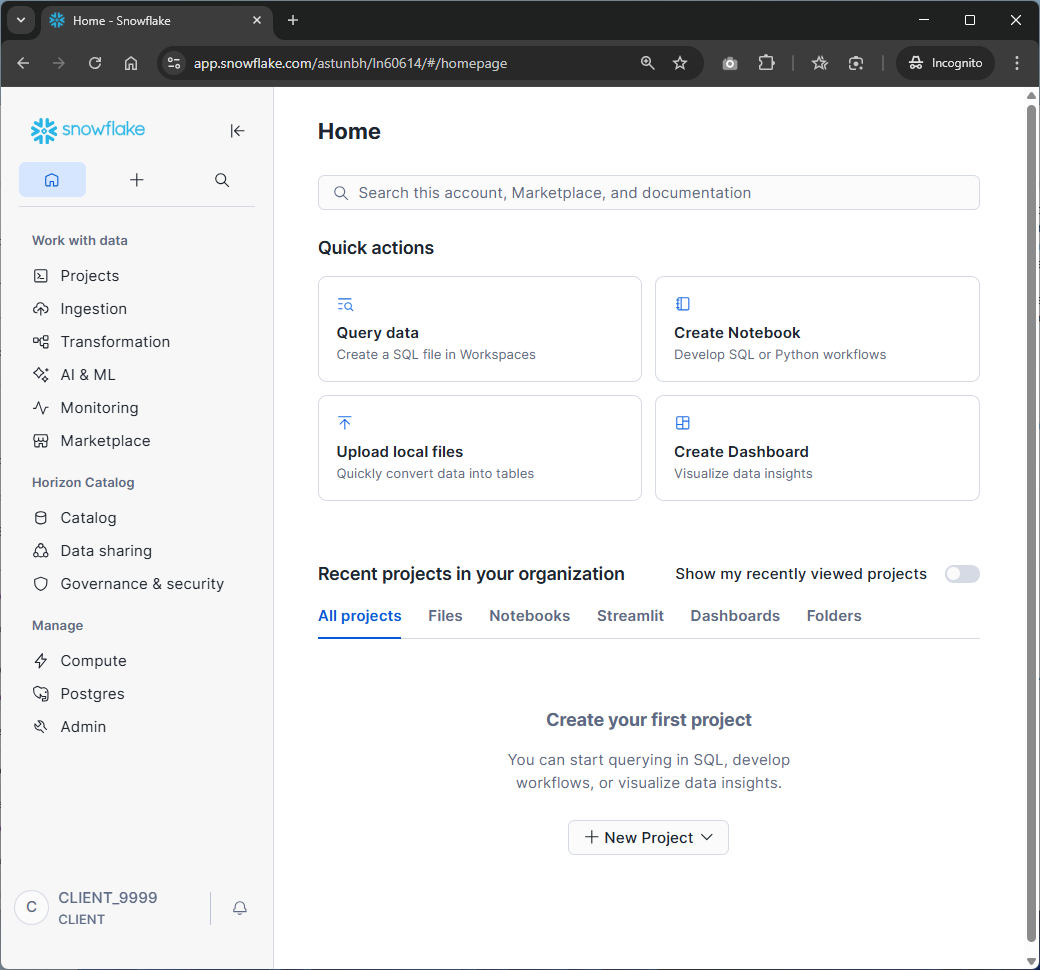
Click on Projects - Dashboards.
Then click on the “+” in the top-right to create a new Dashboard.
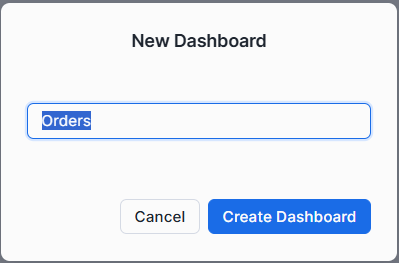
Give it a name like “Orders” and click “Create Dashboard”:
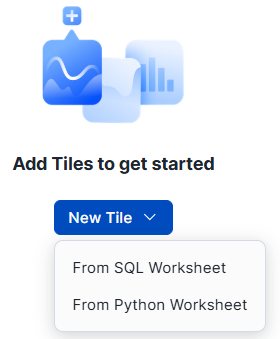
Click on "New Tile", "From SQL Worksheet":
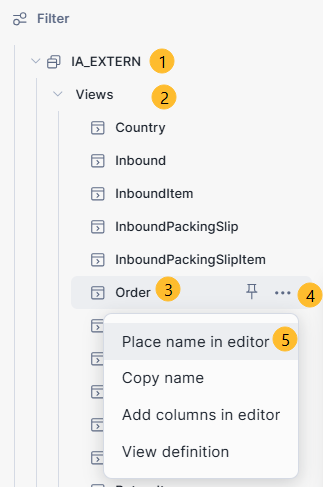
In the left bar you can select a database. For now: always use “DWH_DEV” as the database. Then select a schema. Clients only have access to the “IA_EXTERN” schema.
Under IA_Extern, select “views”, then the view “Order”. Click on the epsilon to get the menu, and then select "Place name in editor":
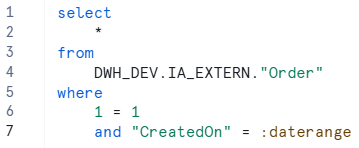
Now change the query to look like this:
You can now execute it by hitting CTRL-Enter or by clicking on the run-symbol:  .
.
When you click on “Return to Orders” in the top left, your Dashboard is saved and you’ll see the results.
Note that because you added the where-clause "and "CreatedOn" = :daterange", you automatically implemented a dashboard filter. Initially that is set to "Last day". You can change this to "Last 7 days" or anything you want. Just remember to hit the "Apply" button at the top-right.
The initial results of the query are shown in your dashboard:
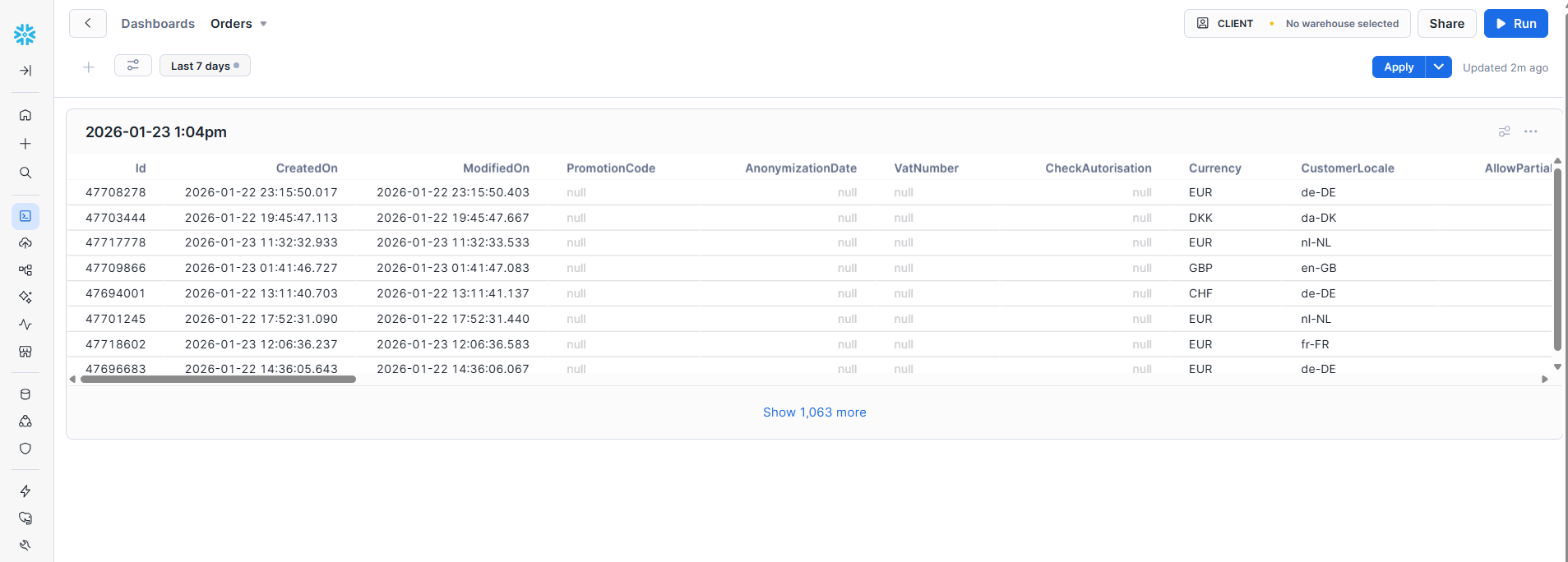
You can then click on the "Show xxx more"-link at the bottom to see all results:
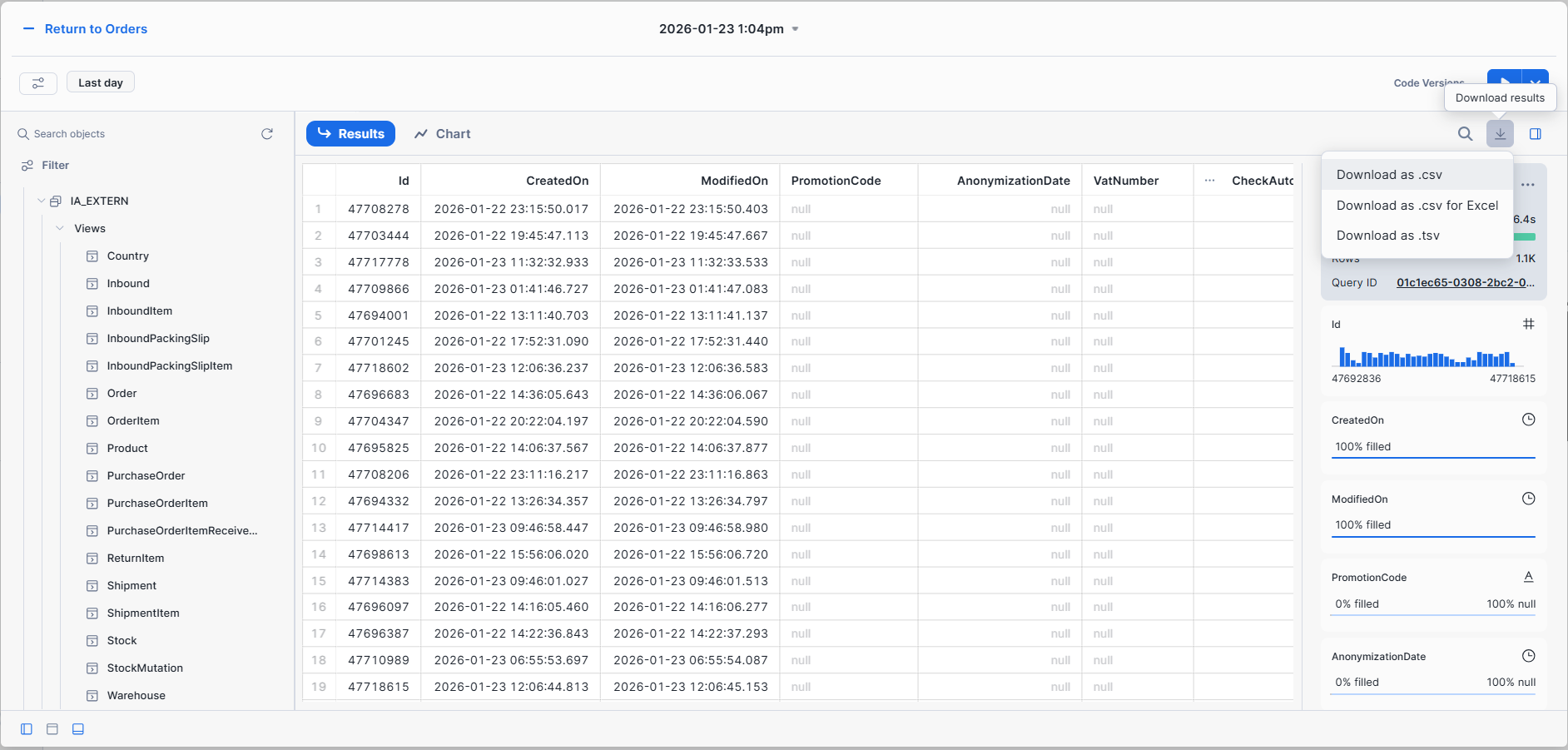
From here, select the download button and choose a format (CSV, CSV for Excel, or TSV). In most cases, TSV (Tab-Separated Values) works best.
You have now created your first dashboard. This is convenient for quick access.
For a more elaborate way of accessing your data, you’ll need to use a connection like ODBC (next section). By using an ODBC connection you no loner need to download CSV/TSV files, but can refresh your data directly in Excel.