Shared Data
One of the advantages of using Snowflake is the separation between compute and storage. Because these two are distinct within the Snowflake DWH, there is the option to access data from a different Snowflake environment, free of cost.
Snowflake eliminates the need to copy or physically move the data. With Snowflake's data sharing functionality, one account (Paxon ⸗ Active Ants) can grant live, read-only access of specific datasets to another account (clients of Paxon ⸗ Active Ants) without transferring or duplicating the data. We are talking about a different account here, not a different user.
Clients can then query the data as if it exists locally, even though it is physically stored in Paxon ⸗ Active Ants’s account. Since the data remains in one location, Paxon ⸗ Active Ants incurs only the storage costs, making this approach significantly more efficient and scalable for cross-account collaboration.
There is one major drawback to this setup in that the client's Snowflake environment should also reside within Azure, in the Europe-West region.
For generic info about Data Sharing within Snowflake, see https://docs.snowflake.com/en/user-guide/data-sharing-intro
Creating a Connection
To make use of this functionality, clients will need to request this access via their Paxon ⸗ Active Ants' Account Manager.
Clients will also have to open their own account with Snowflake. And this needs to happen in the Azure / Europe West region. We do not support sharing of data with a different cloud provider, nor with a different region.
Clients will then need to share 2 Snowflake identifiers with Paxon ⸗ Active Ants from within their Snowflake environment:
- The account identifier (a combination of OrgName and AccountName) of their account in their Snowflake environment.
- Their current account in their Snowflake environment.
The easiest way to retrieve these values is to log in to their Snowsight environment (not the environment of Paxon ⸗ Active Ants). Then open a worksheet and execute:
select CURRENT_ORGANIZATION_NAME(), CURRENT_ACCOUNT_NAME(), CURRENT_ACCOUNT();
This will return something like:
| CURRENT_ORGANIZATION_NAME() | CURRENT_ACCOUNT_NAME() | CURRENT_ACCOUNT() |
|---|---|---|
| ASTUNBH | LN60614 | ES61449 |
These values need to be send to Paxon ⸗ Active Ants to complete the process of setting a a datashare.
Please note that sending these exact values (ASTUNBH / LN60614 / ES61449) to Paxon ⸗ Active Ants means that you have run the query in our environment, not your environment. This will not work, because we need your identifiers to share data with you.
Only when Paxon ⸗ Active Ants has completed the setup can the client continue with the next step: using the shared data.
Using shared data
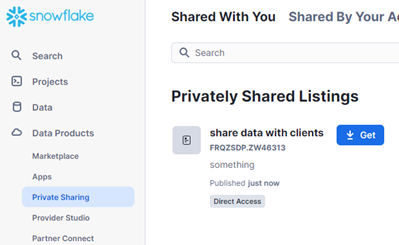
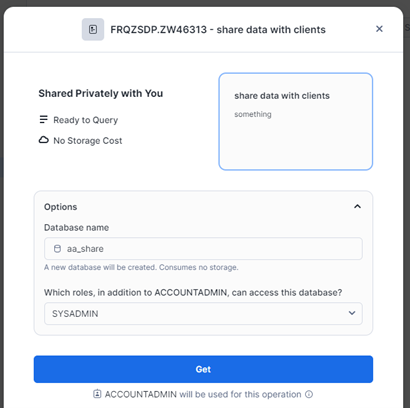
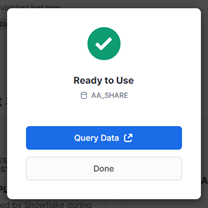
After Paxon ⸗ Active Ants has set up the shared data, the client can use it. See the screenshots below for details.
- Go to “Data Products” > “Private Sharing”
- Click on the blue button “Get”
- Optional: change the database name and/or role and click the "Get" button
- All is ready to use the data
Test the data share
Go to Snowsight, open a worksheet, and execute:
select * from AA_SHARE.PUBLIC.TESTVIEW;
You should see a number of results.