Magento 2
Installation and Configuration Guide
Introduction
This document contains instructions for installation and configuration of the Magento 2 module ‘Paxon ⸗ Active Ants Connector’ developed by Paxon ⸗ Active Ants.
The Paxon ⸗ Active Ants Connector provides the connection (referred to as “synchronization” in this document) between a Magento 2 installation and the Paxon ⸗ Active Ants ERP (Maya) via the Paxon ⸗ Active Ants HTTP API.
The API is used for the following flows:
- Order creation in Maya
- Product creation and updating product information in Maya
- Requesting current stock from Maya
The connector automatically extends the default Magento REST API to enable stock and shipping updates from Maya to Magento.
Prerequisites
Compatibility
- Compatible with Magento 2.4.*
Requirements
- CRON jobs must be enabled on the server.
Supported Magento product types:
- Simple
- Grouped
- Configurable
- Bundled*
* Bundled products must be set to “ship separately” to correctly complete the final shipping status in Magento after shipping by Paxon ⸗ Active Ants.
Important notes:
- The product synchronization process only runs for Simple Products (these are the only ones containing real stock).
- Magento’s rarely used “Special options” feature is not supported (no real stock-bearing products are created). Use Configurable, Bundled, or Grouped products instead.
Installation
Install via Composer. Credentials will be provided by Paxon ⸗ Active Ants.
-
Add the Paxon ⸗ Active Ants repository:
composer config repositories.activeants composer https://packages.activeants.nl -
Require the package:
composer require activeants/magento2-connector -
Enable the module and dependencies:
bin/magento module:enable ActiveAnts_Base ActiveAnts_Connector -
Run upgrade:
bin/magento setup:upgrade
Recommended pre/post-installation steps:
-
Deactivate MSI (Multi-Source Inventory)
→ https://magento.stackexchange.com/questions/273156/how-to-disable-the-msi-in-magento-2-3 -
Allow bulk updates
→ https://support.magento.com/hc/en-us/articles/4406893342093 -
Generate and send an integration token to Paxon ⸗ Active Ants
→ https://devdocs.magento.com/guides/v2.4/rest/tutorials/orders/order-admin-token.html
Configuration
After installation, go to:
Paxon ⸗ Active Ants → Connector → Configuration
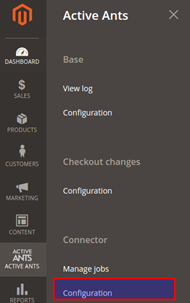
API settings
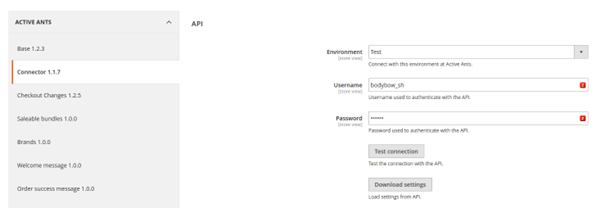
Environment
Paxon ⸗ Active Ants offers three environments:
- Production
- Test
- Development (internal use only)
Recommendation: Start with Test environment to validate all core functions (product & order sync). Switch to Production only after successful testing and receiving production credentials from Paxon ⸗ Active Ants.
Username and password
Credentials are provided by Paxon ⸗ Active Ants. Test and Production use different credentials.
Check the credentials
After entering username/password → click “Test connection”.
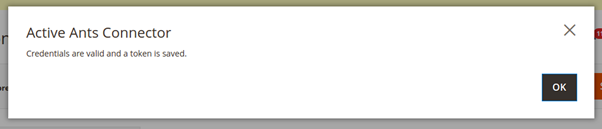
A successful test saves the token.
Download settings
After successful credential test → click “Download settings”.
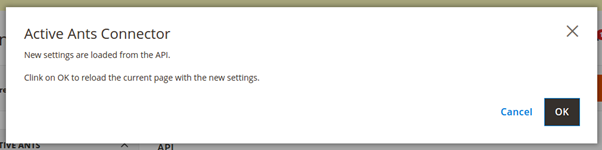
This fetches the latest settings from Maya (order types, languages, etc.).
General
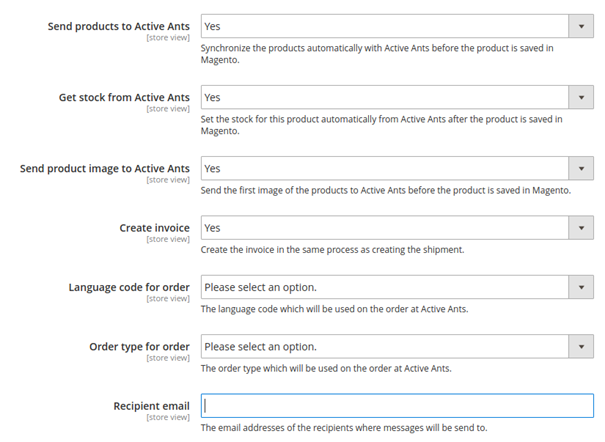
-
Send products to Paxon ⸗ Active Ants
Scope: default / store / store view
→ Only enable for your default language/store to prevent overwriting translated names.
→ New stores/views inherit YES by default. -
Get stock from Paxon ⸗ Active Ants
When enabled: stock from Maya is saved to Magento every time a product is saved in the backend. -
Create Invoice
For orders without invoice (free orders, bank transfer, etc.): creating a shipment from Paxon ⸗ Active Ants also creates the invoice → order set to Complete. -
Send product image to Paxon ⸗ Active Ants
First product image is sent as thumbnail to Maya. -
Language code for order
Select correct language → used for transactional emails sent by Maya. -
Order type for order
Different stores can use different order types (e.g. B2B vs B2C). Contact your account manager for more information. -
Recipient email
Important sync messages are sent here.
→ Use your own email(s) (comma-separated).
→ Do not enter Paxon ⸗ Active Ants email addresses!
Mapping
-
Payment methods
Default (most common): “Geen incassering” (Payment not processed by Paxon ⸗ Active Ants).
Only change if you have a Payment Contract with Paxon ⸗ Active Ants, so basically: never change this. -
Shipping methods
Leave empty unless using Paxon ⸗ Active Ants advanced logistics shipping module (set by Paxon ⸗ Active Ants only). -
Synchronize state [status]
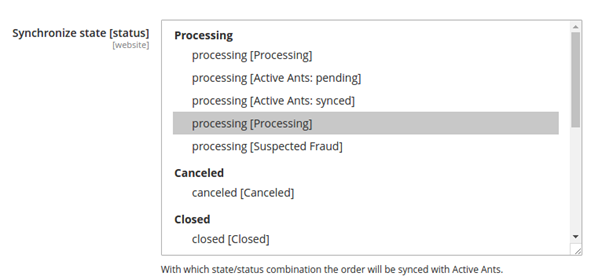
Critical setting.
Define Magento order state/status combination(s) that indicate a fully paid order ready for fulfillment. Orders that have reached this state/status in your Magento store will be sent to Paxon ⸗ Active Ants immediately for packing and shipping. Please make sure only orders that are allowed for shipping reach this state/status in Magento. → Most common: Processing / processing
→ Must be tested with all payment methods in the Test environment.
→ Wrong setting can cause unpaid orders to be shipped. Contact Paxon ⸗ Active Ants IT if unsure. -
Barcode attribute

Map your Magento EAN/Barcode attribute to Maya EAN/Barcode field → helps with warehouse identification. Using this function can save you time and costs for warehouse restocking and processing new stock at Paxon ⸗ Active Ants Logistics warehouse because new products can be identified easily.
You cannot overwrite existing EAN/Barcodes in Maya.
-
Additional order items
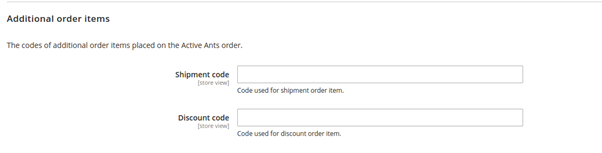
Codes (provided by Paxon ⸗ Active Ants) for shipping costs, discounts, etc. to appear on packing slip/invoice.
On hold
- Orders can be sent “On Hold” → products are synced and reserved in Maya.
- Changing to a release status triggers packing & shipping.
- Useful for large/manual payment orders to prevent overselling.
Payment methods for holding back the order
Select which payment methods trigger “On hold”.
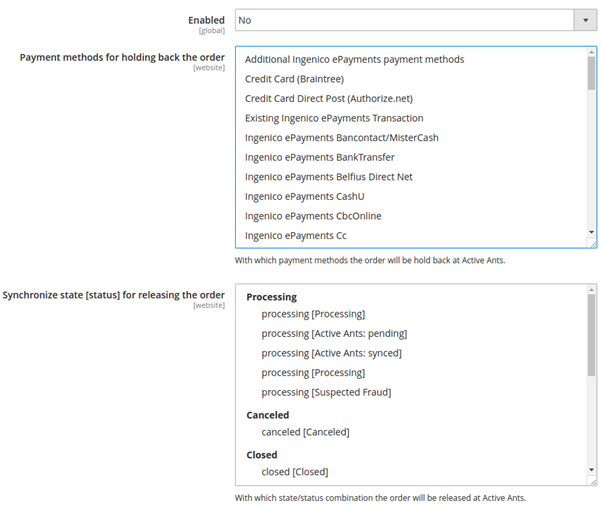
Synchronize state[status] for releasing the order
Define state/status that releases the order for fulfillment by Paxon ⸗ Active Ants.
Queue
Automatic retry mechanism for failed synchronizations.
Default: 30 attempts with 1-hour interval.

Order synchronization process
Triggered on every order status change (frontend or backend).
State/status validation
- If order already has Paxon ⸗ Active Ants: Synced history → ignored (prevents duplicate shipping).
- If current state/status not in configured “ready to ship” combinations → ignored.
Mapping
Magento order data converted to Maya-compatible format.
→ Successful → status set to Paxon ⸗ Active Ants: Pending
Send order to Maya
- Checks if order already exists in Maya.
- If exists → error email sent.
- If not → order sent to Maya.
- Success → Paxon ⸗ Active Ants: Synced
- Failure → Paxon ⸗ Active Ants: Error + added to queue
Error handling
Failed orders → added to queue + full error logged + email sent to configured recipient(s).
Queue processing
CRON job runs every 5 minutes.
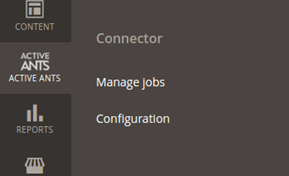
View/manage jobs:
Paxon ⸗ Active Ants → Connector → Manage jobs
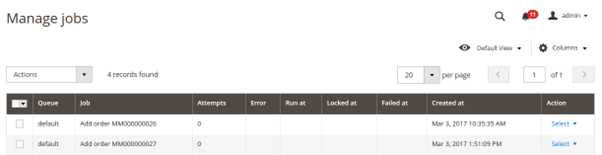
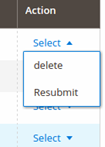
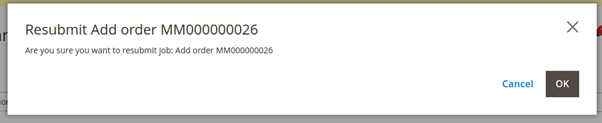
To retry failed job: select → Resubmit → OK
Product synchronization process
Products can by synced with Paxon ⸗ Active Ants product by product or via mass action.
Single product synchronization
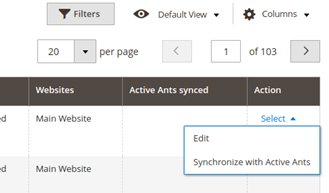
Catalog grid → Action column → Synchronize with Paxon ⸗ Active Ants
Mass product synchronization
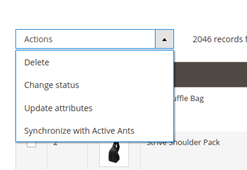
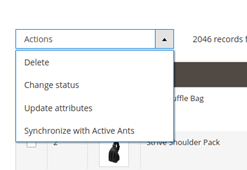
Catalog grid → mass action → Synchronize with Paxon ⸗ Active Ants
Process
Only Magento Simple Products are synchronized.
- Search Maya by Magento SKU.
- Exists → create product synchronisations object → send to API. Results will be logged.
- Not exists → create synchronisation object → send to API. Results will be logged.
- If Get stock from Paxon ⸗ Active Ants enabled → fetch current stock from Maya and set stock quantity on the product in Magento.
Important:
Magento provides the option to change a SKU. Maya only accepts changing product names, because of order history, correct stock supply and financial reporting. Please avoid changing SKUs in Magento. Changing SKUs in Magento will result in creating new products in Maya for each changed SKU.
Contact Paxon ⸗ Active Ants support if SKU correction is needed.
Magento API user / Access token
Paxon ⸗ Active Ants requires a Magento integration token with read/write access for:
- Creating shipments
- Processing stock mutations
Stock & Shipment
Updates flow from Maya → Magento via extended REST API.
Logging
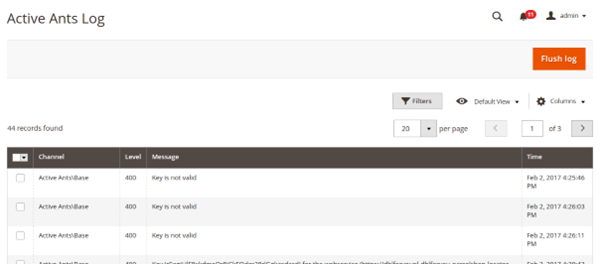
All connector actions are logged in:
Paxon ⸗ Active Ants → Base → View log
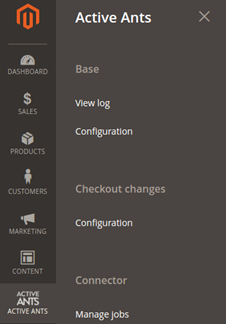
You can use various filter options at the grid to search the complete log history easily. With the option Flush log all log records will be cleared.
Attachments
Handling bundled product prices
Magento bundled products support two price types: Dynamic and Fixed.
Dynamic
When using the option dynamic price no complex calculations needs to be done, because the prices of the related simple products are leading.
Fixed
Calculating the price using the option fixed price set for the complete bundled product, not for the individual products. The connector synchronizes only simple products. This means that there must be a calculation at the total price of the bundled product to get the separate values for the related simple products.
Calculation logic:
- A = Total price of bundled product
- B = Total fee (containing possible surcharges for bundled products and possible surcharges for simple products)
- C = The total amount of all order items that contain simple products
- D = The calculation difference that needs to be split between the order items that contain simple products: (A – B) – C
- E = The number of order items of simple products
Option 1 (when C = 0):
F = A / E (average across lines)
Option 2 (proportional distribution):
- G = Ratio = (H × I) / C
(H = original price of simple product, I = quantity) - Final line amount = (H × I) + (G × D) + J
(J = supplement if any)