Woocommerce
Installation
Paxon ⸗ Active Ants supplies the plugin as a .zip file, which can be installed via the Plugins menu in WordPress:
Plugins → Add New → Upload Plugin
Advanced users may install it via Composer using the Paxon ⸗ Active Ants repository. A separate manual is available on request.
After installation, the plugin appears in the Plugins menu and must be activated before use.
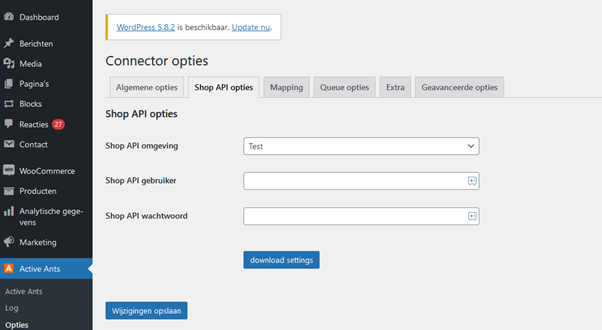
Once activated, the app becomes available and the following screen will appear:
Configuration
Go to the Shop API options tab to begin configuration.
- For a test project, select Test under Shop API environment.
- For live integration, select Live.
- Enter the API user provided by Paxon ⸗ Active Ants.
- Enter the API password provided by Paxon ⸗ Active Ants.
(Note: Test and Live require different credentials.)
Click Save changes, then Download settings. The link is now loaded.
Options
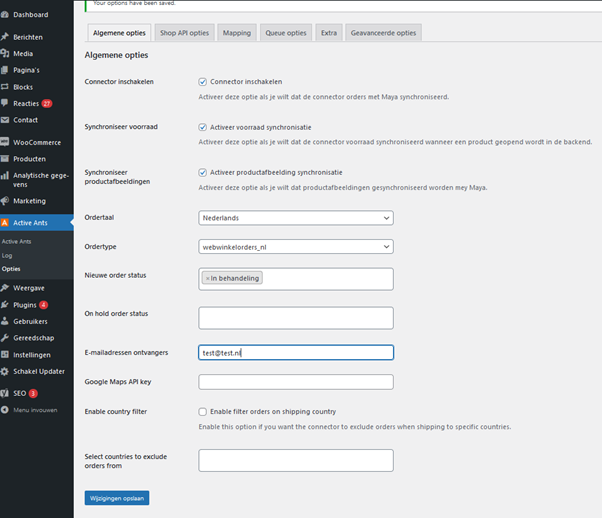
Below is an overview of the available options and their meaning:
Enable connector
Activates or deactivates the connector.
Synchronise stock
When enabled, product stock saved in Maya is immediately synced to WooCommerce.
Synchronise product images
When enabled, product images saved in WooCommerce are also stored in Maya, improving warehouse recognition.
Order language
Select the language code for orders sent to Paxon ⸗ Active Ants.
This determines the language used for transactional emails and BasketPics.
WooCommerce currently supports only one language code by default.
Order type
Lists order types available in the Maya account.
Only one order type can be linked per webshop.
Consult Paxon ⸗ Active Ants for the correct order type.
New order status
Select the WooCommerce status that marks an order as paid so it can be forwarded to Paxon ⸗ Active Ants.
Default: Processing
On hold order status
Ignore unless instructed otherwise by Paxon ⸗ Active Ants.
Recipients’ email addresses
Enter the email addresses of the webshop or customer service team.
If an order is placed on hold due to an error, these addresses receive a notification.
Separate multiple addresses with commas.
Google Maps API key
Required if you want to display a map when showing pickup points.
Without it, only a list of pickup points is shown.
Used together with the Mapping tab.
Enable Country Filter
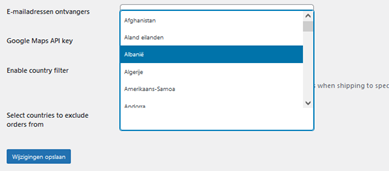
Enable this if you want to exclude certain countries from Paxon ⸗ Active Ants fulfilment.
After configuring the desired options, click Save changes.
Mapping Shipping Methods
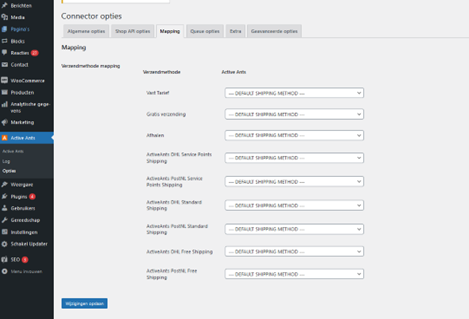
If you want to use checkout options, configure this tab together with Paxon ⸗ Active Ants.
This must be done separately for Test and Live, because shipping method IDs differ.
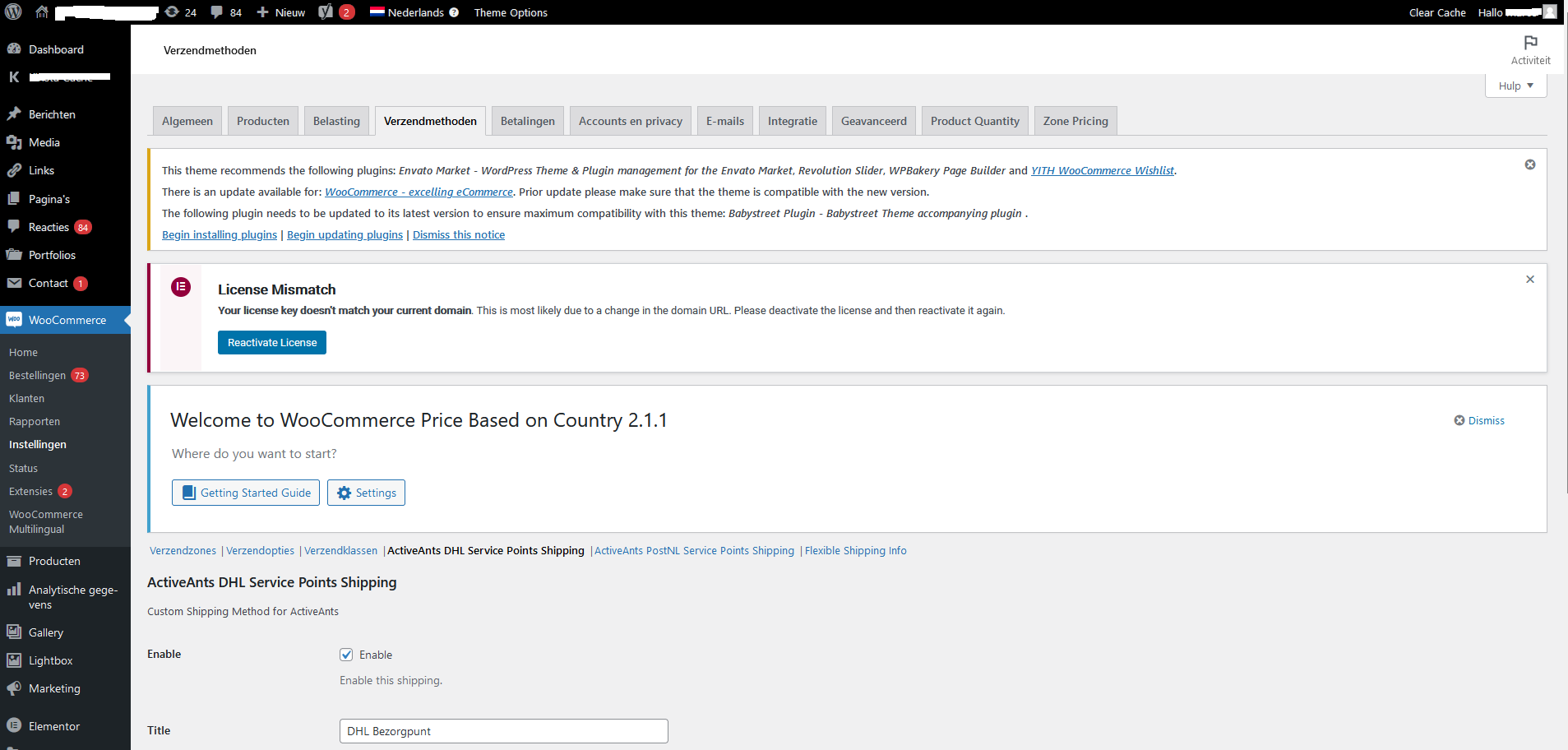
It is important to know that in addition to the Paxon ⸗ Active Ants Plugin, you also need to go to your Woocommerce settings and activate Paxon ⸗ Active Ants in the shipping methods section.
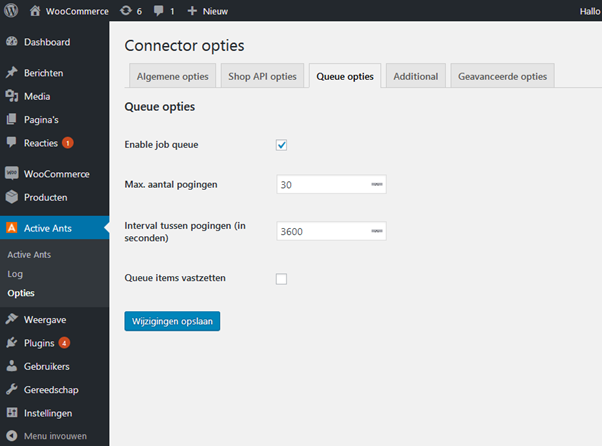
Queue Options
The queue contains orders with errors in the order data or shipping address.
The system attempts to resend a queued order 30 times at varying intervals.
Enable the queue by checking Enable job queue and leave the remaining settings as default.
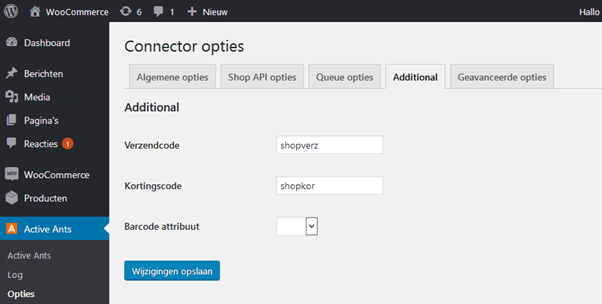
Additional
To register delivery charges and discounts in Maya, enter the product codes provided by Paxon ⸗ Active Ants in:
- Delivery code
- Discount code
Barcode attribute
Select the WooCommerce product field that contains the EAN/barcode.
This ensures the barcode is forwarded to Paxon ⸗ Active Ants when new products are added, speeding up goods receipt.
Advanced Options
Use the default settings unless instructed otherwise.
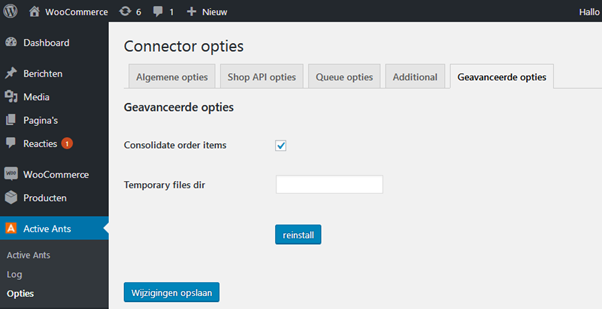
Consolidate order items
Must remain enabled.
This ensures multiple quantities of the same product are combined into a single order line in Maya.
Some plugins create duplicate lines, which is inefficient and more costly.
Temporary files dir
Used only for non-standard hosting setups.
Reinstall
Reinstalls the plugin from scratch.
Synchronisation of Completed Orders
When Paxon ⸗ Active Ants ships an order, WooCommerce updates the order status to Completed.
(In Dutch shops, this appears as Afgerond.)
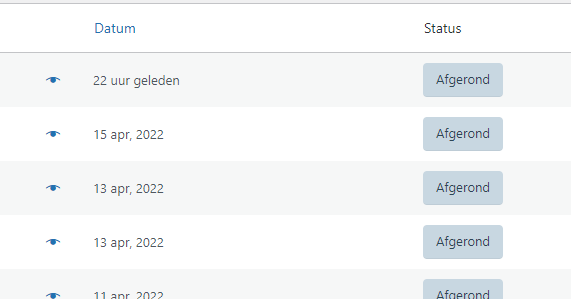
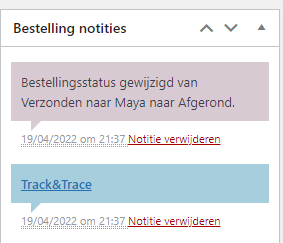
The Track & Trace information appears in the order notes.